Sentinels
Professional+ feature · 6 min read
A Sentinel is a saved query that watches the live SEC filing stream for filings matching your criteria, runs AI analysis on each match, and delivers the result to your Briefings inbox in seconds. Sentinels are the trigger; Briefings are the delivery.
What a Sentinel is
You describe a Sentinel as one sentence with three slots:
Watch for X. Analyze with Y. Deliver to Z.
For example: Watch 8-K Items 2.04 and 2.05 filings from the public-BDC peer set. Analyze with Material Events. Deliver to my inbox and to my team's webhook.
Public companies file thousands of forms with the SEC every business day. Most are noise to your investment thesis. The few that aren't can move markets within minutes — an 8-K disclosing a CEO departure, a Form 4 showing a large insider sale, a 10-Q with a material weakness disclosure. A Sentinel collapses the work of catching those into one configuration step. From then on, only the matches reach your inbox, each pre-analyzed by the workflow tuned to that filing type.
The composer
Sentinels are composed on a dedicated page at /sentinels/new. The composer is a canvas with three regions on the left and a live Insights rail on the right.
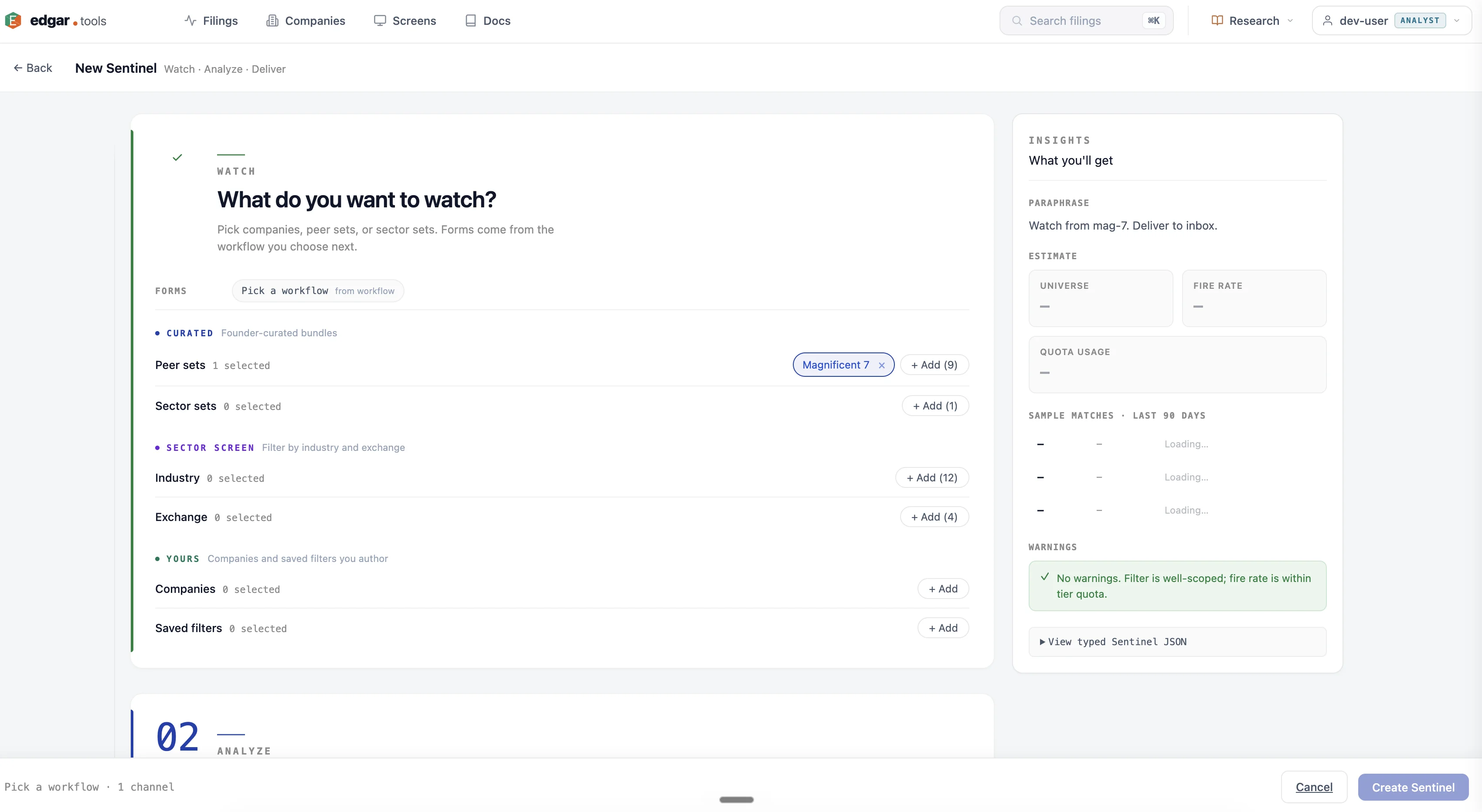
Watch — what to look for
The WATCH region builds the universe and the filing predicates.
Universe lives in two groups:
- Curated — sector sets and peer sets maintained by edgar.tools (for example Life Sciences, Public BDCs, Mega-cap Tech). Refreshed automatically; shared across all users.
- Yours — companies you pick by ticker or CIK, plus any saved Filters you've authored. A saved Filter scoped to a list of CIKs is what we call a watchlist; it's the same primitive as a Screen.
Universe rows AND together: pick Public BDCs and Apple and the Sentinel watches both. Empty rows are hidden behind a single + Add filter affordance to keep the canvas compact.
Filing predicates sit below the universe. The forms (8-K, 10-K, Form 4, etc.) are determined by the workflow you choose in ANALYZE and shown as read-only chips. For workflows where item-level refinement is meaningful — material_event_analysis — an Items row lets you narrow to specific 8-K items like 2.04 (covenant default), 2.05 (exit / disposal), or 5.02 (officer change).
Analyze — what to do with each match
The ANALYZE region picks one workflow. Workflows are grouped by category — Material / Earnings / Ownership / Credit / Funds / Risk — so the picker scales as new workflows ship. Each workflow declares which forms it consumes; pick a workflow and the WATCH region's form chips update accordingly.
When the workflow expects forms your WATCH universe wouldn't deliver, a compatibility banner surfaces inline:
⚠ Workflow expects 10-K, WATCH includes 8-K — workflow will skip 8-K filings.
The check is live as you edit, and re-runs server-side on save as a defense-in-depth.
Workflow parameters render automatically from the workflow's declared schema — enum parameters become dropdowns, booleans become toggles. Most workflows currently expose no parameters; the surface is here for future workflows that need it.
Deliver — where the result goes
The DELIVER region is a list of channels:
- In-app inbox — every Sentinel delivers to your Briefings inbox. Real-time SSE push.
- Webhook — POST an HMAC-signed payload to your endpoint. Configure endpoints once at Settings → Webhooks, then pick one from a dropdown. Realtime delivery.
- Email — daily digest or instant. Currently in private beta; will re-open broadly once delivery infrastructure scales.
The Name field lives at the bottom of DELIVER. It auto-generates from your selections (Life-Sci Facility Watch, BDC Credit Stress · 8 borrowers) and you can override it at any time.
The Insights rail
The right rail is the operational preview. It updates live as you edit, so you see what the Sentinel will actually do before you save.
Paraphrase. A plain-English rendering of the typed Sentinel. Watch 8-K filings item 2.04, 2.05, 2.06 from bdcs-public. Analyze each match with Material Events. Deliver to inbox.
Estimate.
- Universe size — how many CIKs your filter resolves to today.
- Fires per month — historical fire rate over a 90-day window, projected forward.
- Quota impact — what share of your monthly AI-analysis allowance this Sentinel is projected to consume, shown as an absolute count and a percentage bar.
Sample matches. Three to five recent filings that would have fired against this Sentinel in the last 90 days. Each row links to the filing detail page and shows a one-line analysis summary (cached if the workflow had already run, or a placeholder if it would have run on demand).
Warnings. Live diagnostics on common failure modes:
- Over-narrow — "0 matches in 90 days — your filter may be too restrictive."
- Over-broad — "1,200+ matches in 90 days — this will burn through your monthly quota quickly."
- Tier-incompatible — "Webhook delivery requires Analyst+; your tier is Pro," with an upgrade link.
- Compatibility — the same banner from the ANALYZE region restated.
JSON view. Collapsed by default. Toggles between the paraphrase + estimate (the default) and the raw typed Sentinel. The JSON view is for power users debugging a template or copying state between Sentinels.
After you save
Saving lands you on /sentinels/:id/edit — the same composer, but every region now reflects the persisted state and a status pill appears in the header.
A Sentinel has four statuses, not a binary on/off:
- Active — matching against new filings as they arrive.
- Paused — matching halted; configuration preserved. Resume from the actions menu.
- Snoozed — matching halted until a specified date, then auto-resumes. Use this for earnings blackouts, vacation, or any known-noise window.
- Archived — read-only history. Configuration preserved, no matching, no quota impact. Use this to retire a Sentinel without losing what it was.
The actions menu in the page header carries the transitions: Pause, Snooze until…, Archive. Snoozed Sentinels show their resume date in the pill.
Templates
Some pages on edgar.tools link directly into the composer with a pre-filled Sentinel. The BDCWatch landing page, for example, links to /sentinels/new?template=credit_covenant_watch_bdc_basic, which opens the composer with the BDC peer set, the Material Events workflow filtered to credit-stress 8-K items (2.04, 2.05, 2.06), and a sensible default name already filled in. You review the rail, adjust anything you like, and save.
If you land on the composer with an unknown template name, the composer opens blank and the rail surfaces a non-fatal warning.
Finding and managing existing Sentinels
The Sentinel list lives in the Watching panel on /filings — the green chip in the top-right of the live filing stream. Each row shows the workflow icon, name, universe summary ("BDCs peer set + 3 companies"), status pill, and an edit affordance that opens /sentinels/:id/edit.
To create another Sentinel, the panel's + New Sentinel button navigates to /sentinels/new.
Tier gating
Sentinel creation and editing requires Professional or higher. Free accounts see a preview of the Briefings inbox populated from a curated stream, with an upgrade prompt where the composer would live.
| Tier | Sentinels | AI analyses | Webhook delivery |
|---|---|---|---|
| Free | Preview only — upgrade to create | n/a | — |
| Professional ($24.99 / mo) | Unlimited | Fair-use cap, in-app + email delivery | — |
| Analyst ($79.99 / mo) | Unlimited | Higher fair-use cap | ✅ HMAC-signed POST to your endpoint |
| Enterprise | Unlimited | Custom limits | ✅ |
About the fair-use cap. AI analyses are the actual scarce resource (each analysis runs a model on your behalf). We're currently sizing per-tier monthly caps against real usage data; final numbers publish once the sizing window closes. In the meantime the Insights rail shows the projected percentage of your monthly allowance so you always see the impact before saving. Sentinels themselves are unlimited at every paid tier.
See Compare Plans for full tier details.
Related
- Briefings — the inbox where Sentinel matches arrive as AI analyses
- Screens — saved company-universe filters, used as the Yours group in the WATCH region
- Webhooks — Analyst-tier delivery to your own HMAC-signed endpoint
- Live Filing Stream — the underlying real-time feed Sentinels watch
- Filing Documents — the inline viewer Briefings link back to